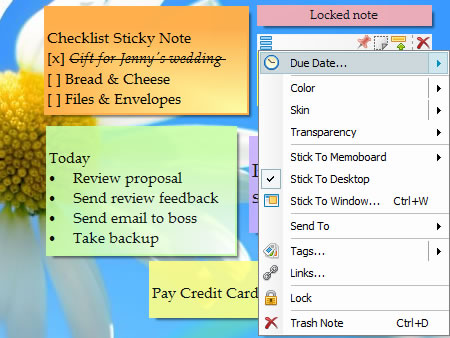
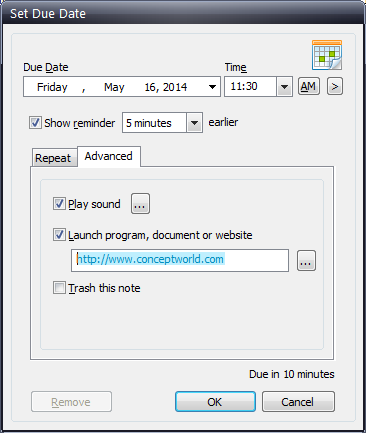
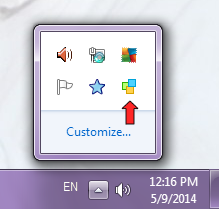
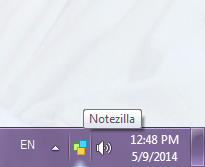
After you run the sticky notes app – Notezilla, you will find that it creates an icon inside the notification area. Windows, by default hides this icon inside an expandable panel. If you click on the small triangle in the notification area (also called system tray), you will see the Notezilla icon. See picture below:
Since the only way to access Notezilla features is through this icon (except for the hotkeys), it would be more convenient to tell Windows always to show this icon so that you don’t have to use the expandable panel each time.
Here is how you would do this.
Step 1: Click on Customize link shown in the expandable panel (see picture above).
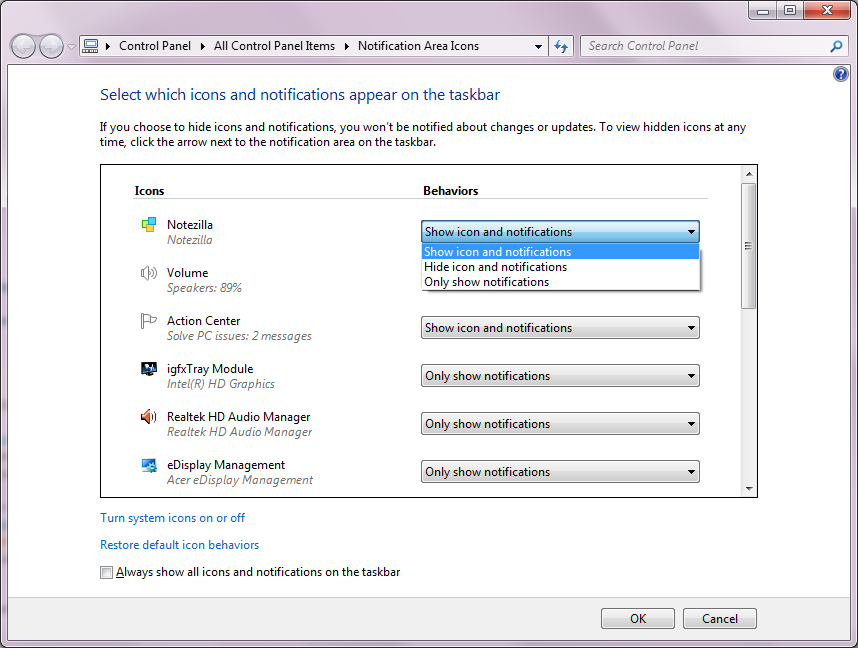
Once you choose ‘Customize,’ you will see the below window allowing you to configure how each tray icon should behave. Click on the below picture to see the full view.
Step 2: Find Notezilla in the list, select ‘Show icon and notifications’ option for Notezilla & press OK.
You will now notice that the Notezilla icon always shows up in the notification area.
Making this small change will ease your access to Notezilla’s features.
What is Notezilla?
Notezilla is a professional, elegant & highly rated sticky notes app for Windows & Phones (Android, iOS, iPhone, iPad etc). You can also access your sticky notes from a Mac.
Notezilla helps you organize various tiny bits of information you would need through out your life. It keeps all your notes, tasks & reminders handy where ever you are. With sticky notes, you hardly have to put effort to take notes, set reminders, etc. Quickly jot down & move on with your task at hand.
Here are some features of Notezilla:
Sticky notes with reminders
Attach sticky notes to websites, documents, folders & apps
Organize sticky notes inside folders to keep your Windows desktop clean.
Pin sticky notes on top of other apps
Sync sticky notes between Windows, Android, iPhone, iPad
Add pictures inside sticky notes
Checklist sticky notes
Lock sticky notes (password protect)
Markdown support
Send notes over local network (LAN) or across the globe
This post will help you understand the differences between sending sticky notes to a computer vs sending sticky notes to a contact in Notezilla.
Using Notezilla, you can send a sticky note to anyone. You can either send using computer name or using contact’s email address.
What is Notezilla?
Notezilla is a professional, elegant & highly rated sticky notes app for Windows & Phones (Android, iOS, iPhone, iPad etc). You can also access your sticky notes from a Mac.
Notezilla helps you organize various tiny bits of information you would need through out your life. It keeps all your notes, tasks & reminders handy where ever you are. With sticky notes, you hardly have to put effort to take notes, set reminders, etc. Quickly jot down & move on with your task at hand.
Here are some features of Notezilla:
Sticky notes with reminders
Attach sticky notes to websites, documents, folders & apps
Organize sticky notes inside folders to keep your Windows desktop clean.
Pin sticky notes on top of other apps
Sync sticky notes between Windows, Android, iPhone, iPad
Add pictures inside sticky notes
Checklist sticky notes
Lock sticky notes (password protect)
Markdown support
Send notes over local network (LAN) or across the globe
Tag sticky notes
Fully transparent sticky notes
Dark mode
Sending a sticky note directly to a computer over LAN
The following video will help you understand this better.
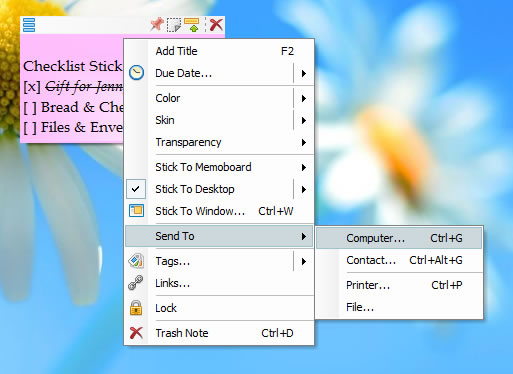
To send a sticky note to another computer over the local network (LAN), you would use the Send To->Computer option from the sticky note menu (click on the top left button on a sticky note for the menu).
Instead of the computer name, you may also specify the IP address of the computer. Both would work.
In Notezilla, sticky notes sent over the network to another computer do not use the Internet. The data transfer happens over a local private network.
Another advantage of sending sticky notes directly to a PC is that the note reaches immediately on the other computer. However, the recipient computer must be in ON state, and Notezilla must be running on it to receive the sticky note.
How do i achieve this?
Setting this up is relatively simple.
Install Notezilla on every Windows PC that wishes to send & receive sticky notes.
To send a sticky note, go to the sticky note, click on the left top button and choose Send To->Computer.
Allow Notezilla through Windows Firewall
Make sure first to configure your PC firewall to allow the running of Notezilla. The firewall on the PC might sometimes not allow to send or receive notes.
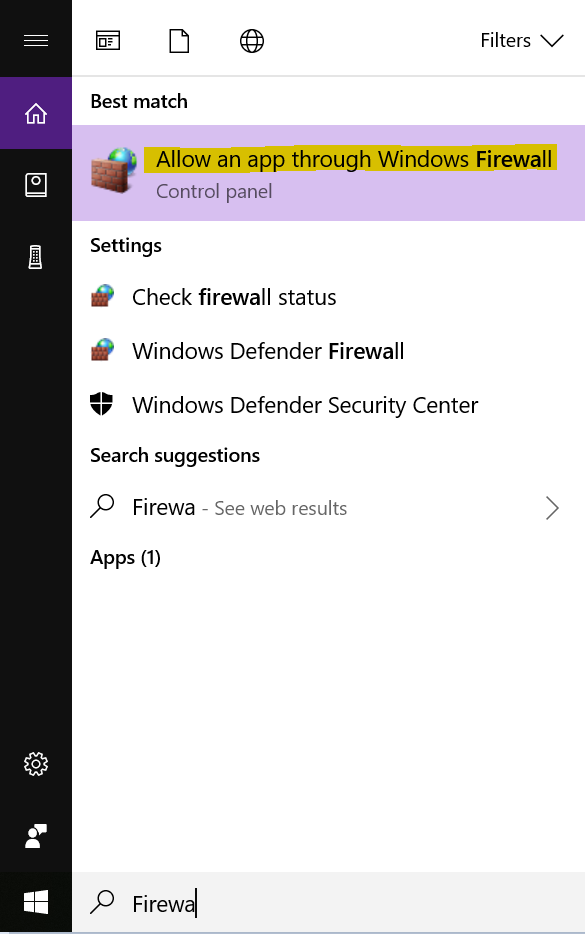
You can search for a firewall in the Windows search box, and you will see “Allow an app through Windows Firewall.” Choose this option and enable Notezilla. If Notezilla is not listed, then click on ‘Allow another app’ and add Notezilla.
If you are using any other Firewall tool (usually included with Anti-Virus software), then you will have to configure that firewall.
Make sure you do this on both sending and receiving computer.
Sending a sticky note to a contact
On the other hand, sending sticky notes to a contact happens over the Internet.
In this case, it uses Notezilla.Net cloud to transfer your sticky note. The biggest advantage here is there you can send the sticky note to anyone across the globe.
It is not limited to just the local network. Plus, the other computer should not be in ON state to receive the sticky note. The recipient will receive the sticky note whenever he turns his PC ON. There are some more advantages. The recipient can read the note on his phone while on the move.
Also, he need not be a Notezilla user. If he does not use Notezilla, then he would receive the sticky note as an email in his mailbox.
How to achieve this?
Install Notezilla on every Windows PC that wishes to send & receive sticky notes.
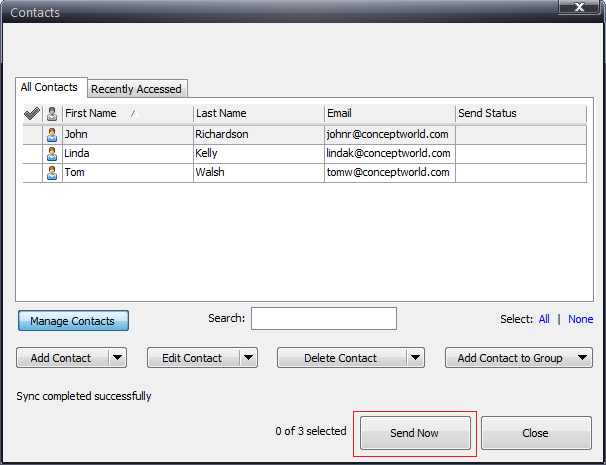
To send a sticky note, go to the sticky note, click on the left top button and choose Send To->Contact. For the first time, you are required to create a Notezilla.Net account.
Once you setup your Notezilla.Net account, add your contacts & start sending sticky notes to them.
If the recipient wants to receive the sticky note right on his desktop, he would also have to keep Notezilla running on his computer with an active Notezilla.Net account.
The recipient will receive the sticky note on his desktop during the next automatic sync (currently it happens every 5 minutes).
Watch the below video to know how to restore Notezilla‘s sticky notes data from backup. This video will also help you understand where exactly Notezilla stores its data.
What is Notezilla?
Notezilla is a professional, elegant & highly rated sticky notes app for Windows & Phones (Android, iOS, iPhone, iPad etc). You can also access your sticky notes from a Mac.
Notezilla helps you organize various tiny bits of information you would need through out your life. It keeps all your notes, tasks & reminders handy where ever you are. With sticky notes, you hardly have to put effort to take notes, set reminders, etc. Quickly jot down & move on with your task at hand.
Here are some features of Notezilla:
Sticky notes with reminders
Attach sticky notes to websites, documents, folders & apps
Organize sticky notes inside folders to keep your Windows desktop clean.
Pin sticky notes on top of other apps
Sync sticky notes between Windows, Android, iPhone, iPad
Add pictures inside sticky notes
Checklist sticky notes
Lock sticky notes (password protect)
Markdown support
Send notes over local network (LAN) or across the globe
If you are not able to run Notezilla, skip steps 2, 3, 4 & 6. You can directly open the data folder by running %appdata%\Conceptworld\Notezilla from the Windows start menu. Similarly, open backup folder %appdata%\Conceptworld\Notezilla\Backup from the Windows start menu. Note that these are default locations where Notezilla stores its data.
To know where Notezilla stores the data, right click on Notezilla icon, choose Preferences from the menu and click on the Advanced tab.
On the Advanced tab, you will see “Data Folder” and “Backup Folder.” These are the locations where Notezilla stores its data and keeps five backup copies of its sticky notes data.
Copy the data folder location from Advanced tab & open in Windows Explorer.
Notezilla stores data inside a file named Notes or Notes8. They might appear as Notes.db or Notes8.db in some computers.
Copy the backup folder location from Advanced tab and open in Windows Explorer.
You will see that Notezilla keeps multiple backups (date-wise). Open the backup folder which contains the latest and correct data.
Copy the backup file Notes8.db to the main data folder. Make sure you exit Notezilla before copying the data file by clicking on Notezilla icon in the taskbar and selecting Exit from the menu.
Make sure you rename the existing Notes8.db file in the data folder and Paste the copied file with a right-click. Run Notezilla to access the restored notes.
You can follow similar steps when you want to move Notezilla‘s sticky notes data from one computer to another.
Today we released Notezilla 8.0.19 with some useful features. This post will cover most important features. You can read the revision history for list of all features added & bugs fixed.
This update is free for all registered users of Notezilla 8.0.
Here is what’s added to the new update.
Sticky notes are automatically re-arranged on change of monitor display resolution
Notezilla 8.0 always remembered the position of sticky notes based on the display resolution. When the display resolution was changed, you would be required to restart Notezilla so that the desktop sticky notes re-position based on the new display resolution. From this update onwards, it is not necessary to restart Notezilla. It will automatically detect the change in display resolution and rearrange sticky notes accordingly.
So now, if you dock your laptop to a bigger display, you will see your sticky notes automatically arranged for your bigger screen.
Directly create sticky notes inside a specific memoboard instead of desktop
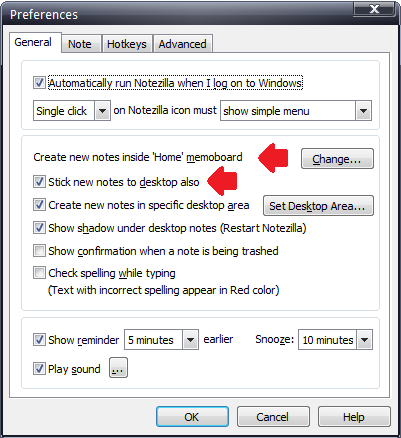
From this update onwards, you can create all sticky notes directly inside a memoboard instead of the Windows desktop. This way, you can avoid too many notes on the desktop. Once you create them inside the memoboard, you can selectively stick them to desktop if you wish.
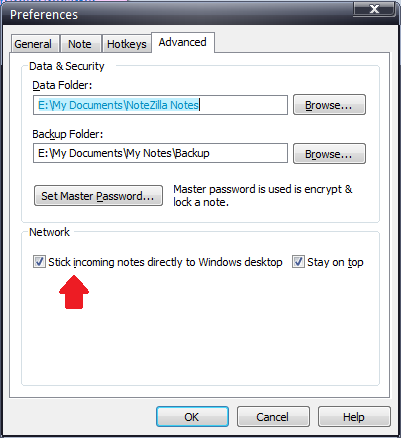
Stick incoming sticky notes directly to the desktop
When someone sends you a sticky note over network or Internet, you can have it stick directly to the desktop and also make it stay on top of other apps.
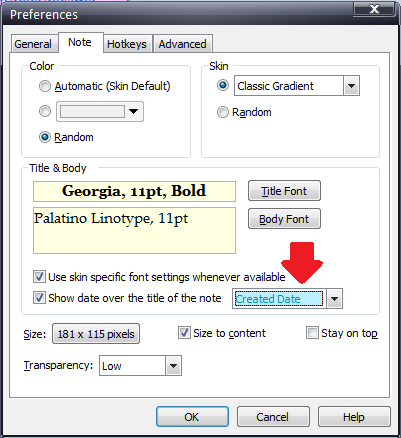
Show “Created” date on top of sticky notes instead of “Modified” date
You can now show the note created date instead of note modified date next to the title of the sticky note.
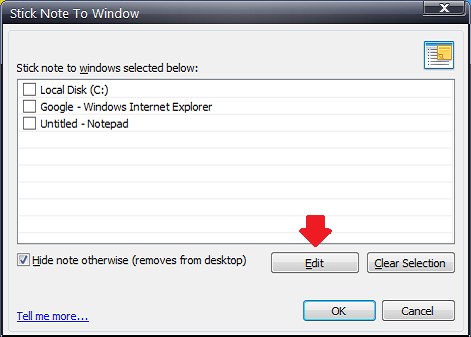
Attach a sticky note to similar websites/docs/apps
This feature already existed in earlier versions. But in this update, we have made it more apparent. We have added an option to ‘Edit’ the title of the window when attaching a sticky note to any website, document, or program. If you add an asterisk (*) at the end of the window title, for example, Project Mars*, then the sticky note will appear on all windows having title beginning with ‘Project Mars.’ Similarly, you can also add an asterisk (*) at the beginning of the window title, for example: *Project Mars. It will match all windows having title ending with ‘Project Mars.’ The sticky note will show up on all such windows.
What is Notezilla?
Notezilla is a professional, elegant & highly rated sticky notes app for Windows & Phones (Android, iOS, iPhone, iPad etc). You can also access your sticky notes from a Mac.
Notezilla helps you organize various tiny bits of information you would need through out your life. It keeps all your notes, tasks & reminders handy where ever you are. With sticky notes, you hardly have to put effort to take notes, set reminders, etc. Quickly jot down & move on with your task at hand.
Here are some features of Notezilla:
Sticky notes with reminders
Attach sticky notes to websites, documents, folders & apps
Organize sticky notes inside folders to keep your Windows desktop clean.
Pin sticky notes on top of other apps
Sync sticky notes between Windows, Android, iPhone, iPad
Add pictures inside sticky notes
Checklist sticky notes
Lock sticky notes (password protect)
Markdown support
Send notes over local network (LAN) or across the globe
With Notezilla 8, you know that the sticky notes can be synced between your Windows desktop & the Notezilla.Net cloud. You can then access your notes from any phone (Android, iPhone, iPad, Windows etc) using the Notezilla.Net web app. Moreover, sticky notes can be synced between your computers too.
What is Notezilla?
Notezilla is a professional, elegant & highly rated sticky notes app for Windows & Phones (Android, iOS, iPhone, iPad etc). You can also access your sticky notes from a Mac.
Notezilla helps you organize various tiny bits of information you would need through out your life. It keeps all your notes, tasks & reminders handy where ever you are. With sticky notes, you hardly have to put effort to take notes, set reminders, etc. Quickly jot down & move on with your task at hand.
Here are some features of Notezilla:
Sticky notes with reminders
Attach sticky notes to websites, documents, folders & apps
Organize sticky notes inside folders to keep your Windows desktop clean.
Pin sticky notes on top of other apps
Sync sticky notes between Windows, Android, iPhone, iPad
Add pictures inside sticky notes
Checklist sticky notes
Lock sticky notes (password protect)
Markdown support
Send notes over local network (LAN) or across the globe
Tag sticky notes
Fully transparent sticky notes
Dark mode
Watch this short video for more clarity:
On sync, new notes created from the phone are brought back to your desktop version of Notezilla. By default, they are created inside the Home memoboard.
What’s newly added now is that when creating a sticky note from the phone, you can ensure that it sticks to your Windows desktop also (not just the Home memoboard) during the next sync. So basically, when you get back to your PC, you will see the new notes (created from the phone) right on your Windows desktop. This option will help in reminding you of your stuff.
You can also insert and sync pictures in mobile apps and see them on your desktop.
If you haven’t synced your sticky notes yet from Notezilla 8, create a Notezilla.Net account today by right-clicking on the Notezilla icon on your PC. To know how to access them from your phone after sync, click here.
If you are still using older version of Notezilla, download Notezilla 8 today & see your notes on your phone. The new version will automatically migrate your notes. There is an upgrade discount too.
As you know, Copywhiz gives you more control over file copying operations in Windows. You can selectively copy only the files that you want, such as copying only new or modified/changed files, copying files from several folders except for certain files, copying files by type, date, size, etc.
Here is a new feature that we discovered today in Copywhiz.
Thanks to our customer Garrett Goyette :)
What is Copywhiz?
Copywhiz enhances your file-copy experience by letting you to have more flexibility & control over the file copying and backup process.
Copying just the folder tree structure without the files inside those folders in 3 simple steps.
Here are the simple steps to achieve this.
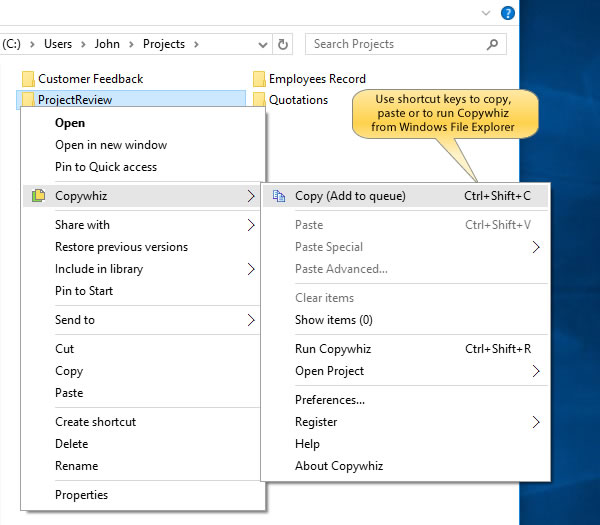
1. Select files using Windows Explorer, right-click on them and choose Copywhiz->Copy from the menu as shown below :
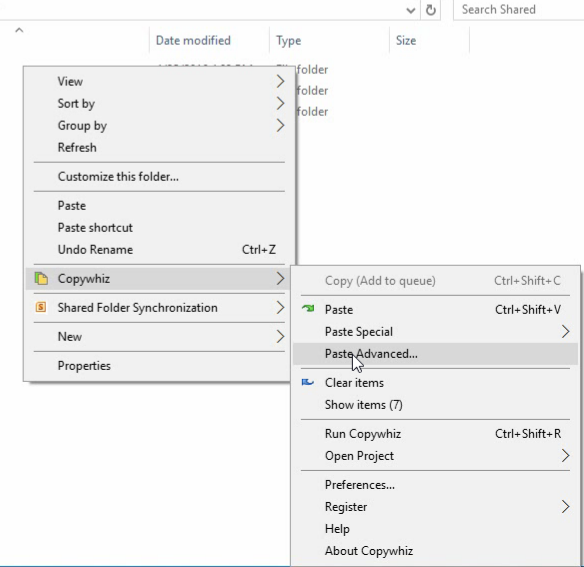
2. Go to the destination folder, right-click inside the folder and select Copywhiz–>Paste Advanced as shown below:
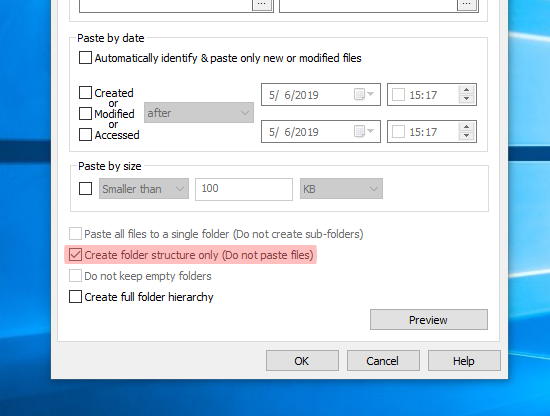
3. Copywhiz Window will open. Click on the ‘Advanced Settings’ button and select ‘Create folder structure only (Do not paste files) as shown below and click on ‘OK’ and “Paste Now.”
Notezilla is a professional, elegant & highly rated sticky notes app for Windows & Phones (Android, iOS, iPhone, iPad etc). You can also access your sticky notes from a Mac.
Notezilla helps you organize various tiny bits of information you would need through out your life. It keeps all your notes, tasks & reminders handy where ever you are. With sticky notes, you hardly have to put effort to take notes, set reminders, etc. Quickly jot down & move on with your task at hand.
Here are some features of Notezilla:
Sticky notes with reminders
Attach sticky notes to websites, documents, folders & apps
Organize sticky notes inside folders to keep your Windows desktop clean.
Pin sticky notes on top of other apps
Sync sticky notes between Windows, Android, iPhone, iPad
Add pictures inside sticky notes
Checklist sticky notes
Lock sticky notes (password protect)
Markdown support
Send notes over local network (LAN) or across the globe
Tag sticky notes
Fully transparent sticky notes
Dark mode
As you know, Internet banking websites do not let browsers to store the bank account numbers (or customer ids) and passwords on a local machine.
Each time, we need to type the complete customer id and password manually. It becomes complicated when we have to access multiple bank accounts.
How to solve this?
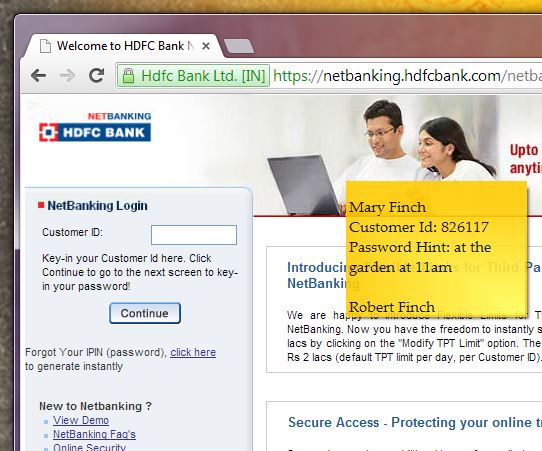
To easily access any bank information, I attach a sticky note (using Notezilla) on the bank’s website with all the required bank information from multiple accounts. Whenever I access the bank’s website, the sticky note pops up. This is very, very convenient. I copy the required info from the sticky note and paste it into the sign-in form.
Security concerns? The information inside a sticky note is stored locally on your system. It does not travel through the Internet even when you stick the note to the website. So you don’t have to worry about it at all.
Password Hints: Moreover, bank sites require you to change the password every few days. It is tough to remember the last password you had set. So I add password hints also into the sticky note for each account. Make sure your password hints are not very obvious :)
You may obscure the information in the sticky note to your satisfaction. Additionally, you can even lock the sticky note using Notezilla so that the data is encrypted on the local machine too.
If you are new to Notezilla, this video will guide you to create your first desktop sticky note and learn some basic features.
What is Notezilla?
Notezilla is a professional, elegant & highly rated sticky notes app for Windows & Phones (Android, iOS, iPhone, iPad etc). You can also access your sticky notes from a Mac.
Notezilla helps you organize various tiny bits of information you would need through out your life. It keeps all your notes, tasks & reminders handy where ever you are. With sticky notes, you hardly have to put effort to take notes, set reminders, etc. Quickly jot down & move on with your task at hand.
Here are some features of Notezilla:
Sticky notes with reminders
Attach sticky notes to websites, documents, folders & apps
Organize sticky notes inside folders to keep your Windows desktop clean.
Pin sticky notes on top of other apps
Sync sticky notes between Windows, Android, iPhone, iPad
Add pictures inside sticky notes
Checklist sticky notes
Lock sticky notes (password protect)
Markdown support
Send notes over local network (LAN) or across the globe
To create a sticky note in Notezilla, right-click on Notezilla icon in the taskbar and choose ‘New Note’ from the menu. A new note is placed on Windows deskop.
Good thing about sticky notes is that they are quick to create and access compared other kinds of notes software.
Type something inside the note. Website links (hyperlinks) can also be added to sticky notes.
You will notice that the sticky note resizes automatically according to the size of the content inside it.
A sticky note in Notezilla can have a separate title. By default, the title is the same as the first line of the sticky note. However, you can press F2 or right-click and choose ‘Add Title’ to add your own title.
When you select a sticky note you will also see the Note Toolbar sliding up with multiple options: Stay On Top, Hide Note, Roll Up/Down Note and Trash Note
Stay On Top is very, very useful when collecting notes or referring to existing notes while working with another app. It keeps the sticky note always on top of other programs.
Hide Note hides the sticky note from the desktop which you can bring it up again from the Notes Browser or by using the ‘Show All Notes’ option from Notezilla menu.
Roll Up/Down Note saves desktop space and makes it cleaner by showing only the title of the note and not the entire content. Also lets you hide some sensitive information from onlookers passing by.
Trash Note sends the note to Trash memoboard, basically recycle bin for sticky notes.
Improved ‘Paste only new or modified files’ The new update can now auto-detect new & modified files. When you choose the option ‘Paste only new or modified files,’ you don’t have to specify the modified/created dates (as in the previous versions). Copywhiz will determine these automatically and copy just the changed files. Backing up files becomes very easy with this new feature. The process of selecting dates was pretty tedious. Though, the option to copy files based on a specific date also exists.
Date variables in destination folder You can use date variables such as %year%, %month%, %day%, %hour% & %minute% as part of destination folder address to dynamically create new destination folder each time. Good for taking backups.
Destination folder auto-filled When using the ‘Paste Advanced’ option, the destination folder is auto-filled. You don’t have to select the destination folder separately.
Multiple destination folders list grows automatically When using ‘Paste to multiple folders‘ option, the destination folder is automatically added to existing list of destination folders. You don’t have to separately add each destination folder.
Run Copywhiz from Copywhiz menu in Windows Explorer It is now possible to launch Copywhiz directly from the Copywhiz menu using the ‘Run Copywhiz’ menu. Use this to open & run a project faster.
Windows Libraries fix Copywhiz did not work inside folders under Libraries (Windows Libraries). Now it works.
Often, we find that a single tool does not meet all our needs. One software tool may seem to be a competitor to another. But we may need both of them at different times to serve different purposes.
What is Notezilla?
Notezilla is a professional, elegant & highly rated sticky notes app for Windows & Phones (Android, iOS, iPhone, iPad etc). You can also access your sticky notes from a Mac.
Notezilla helps you organize various tiny bits of information you would need through out your life. It keeps all your notes, tasks & reminders handy where ever you are. With sticky notes, you hardly have to put effort to take notes, set reminders, etc. Quickly jot down & move on with your task at hand.
Here are some features of Notezilla:
Sticky notes with reminders
Attach sticky notes to websites, documents, folders & apps
Organize sticky notes inside folders to keep your Windows desktop clean.
Pin sticky notes on top of other apps
Sync sticky notes between Windows, Android, iPhone, iPad
Add pictures inside sticky notes
Checklist sticky notes
Lock sticky notes (password protect)
Markdown support
Send notes over local network (LAN) or across the globe
Tag sticky notes
Fully transparent sticky notes
Dark mode
Notezilla & Evernote fall in such category. For taking quick notes on 3M Post-It(r) like sticky notes, setting reminders, letting them stay on Windows desktop for quick reference, attaching sticky notes to websites, documents, folders, emails etc Notezilla is a better choice. For creating notes with heavier content (media etc), Evernote may be a preferred. Both tools may be compared at different levels. However, this is not the point of this post.
This article mainly focuses on how to send a sticky note to Evernote from within Notezilla.
It is simple. Notezilla allows you send a note to another contact using his/her email address. Evernote gives every user a unique email address. You have to add a contact in Notezilla having Evernote’s email address and send notes to this contact.
Thanks to Kevin, who shared this use case with us:
I really like Notezilla 8 and Notezilla.net! I use Evernote and collect massive amounts of information for my work, I use Zendone for my taks and project management. Zendone has the best evernote integration I have found and for me works really well. The one thing I have always had one challenge and that’s getting a quick piece on information, not or task into Evernote. The Notezilla 8 email feature was my answer, I just setup a contact for (“notebook”, Evernote, “evernote email address”) and it worked perfectly. This will allow me to uninstall at least 2 other programs of a much lesser functionality. Really great work. It would be nice though to select how what or how much of the graphics will be sent with the note. Since, I’m actually sending it to one of my own programs, I don’t need the fancy graphics. Notezilla 8 and Notezilla.net will be one of the best purchases I have made in a while. Thanks again,